 My Medication
A little guidance, whenever you need it
Help with My Medication
Learn the app step by step. Screenshots use fictional sample records; your device and settings may look different.
My Medication
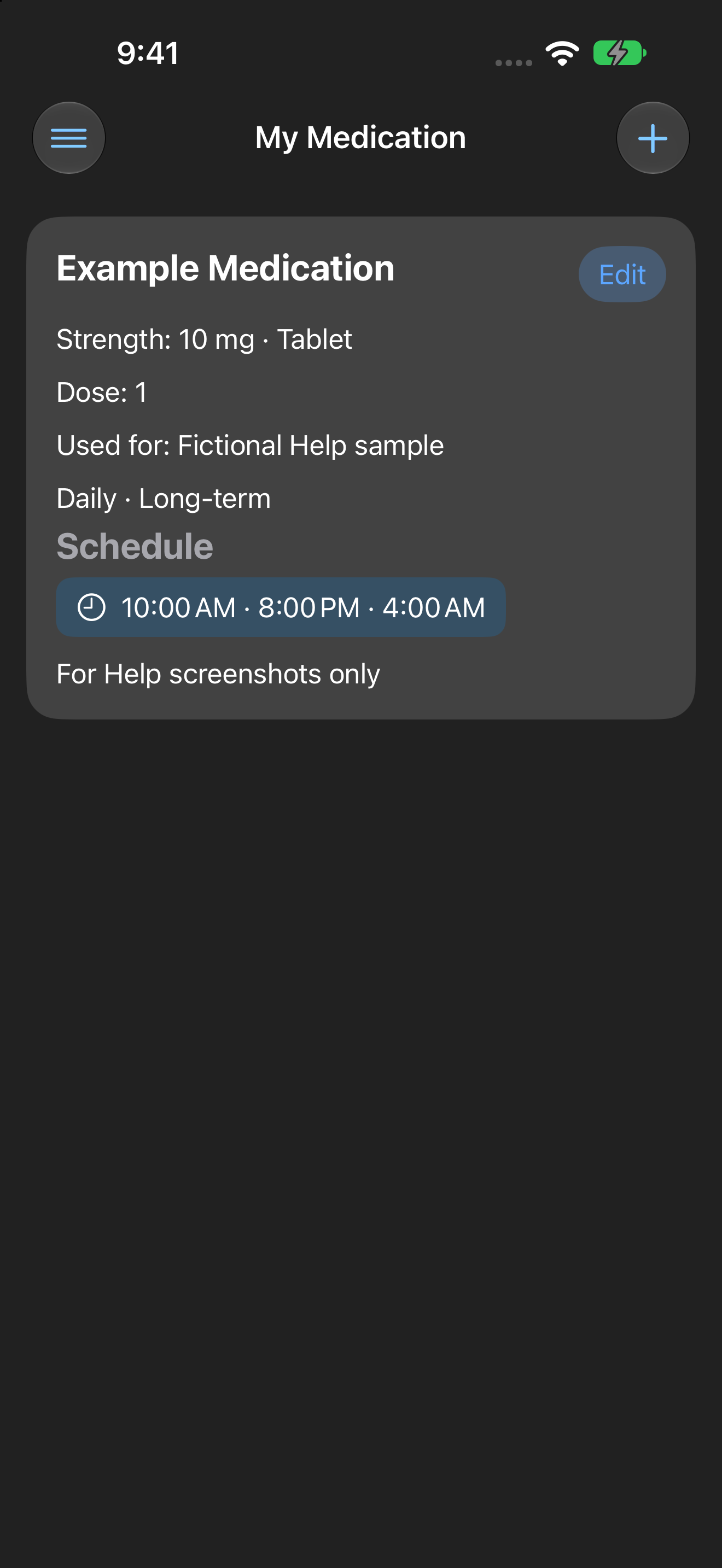
Your active medication list is the starting screen. Tap + to add an entry or Edit on a medication to change it. Show this list at an appointment and check its details against your own instructions.
A medication with no saved time shows As needed and does not create a timed alarm. Archiving keeps its record; deleting a medication does not erase previously recorded Dose History. Use Erase All My Data only when you want to remove all personal app information.
Add Medication
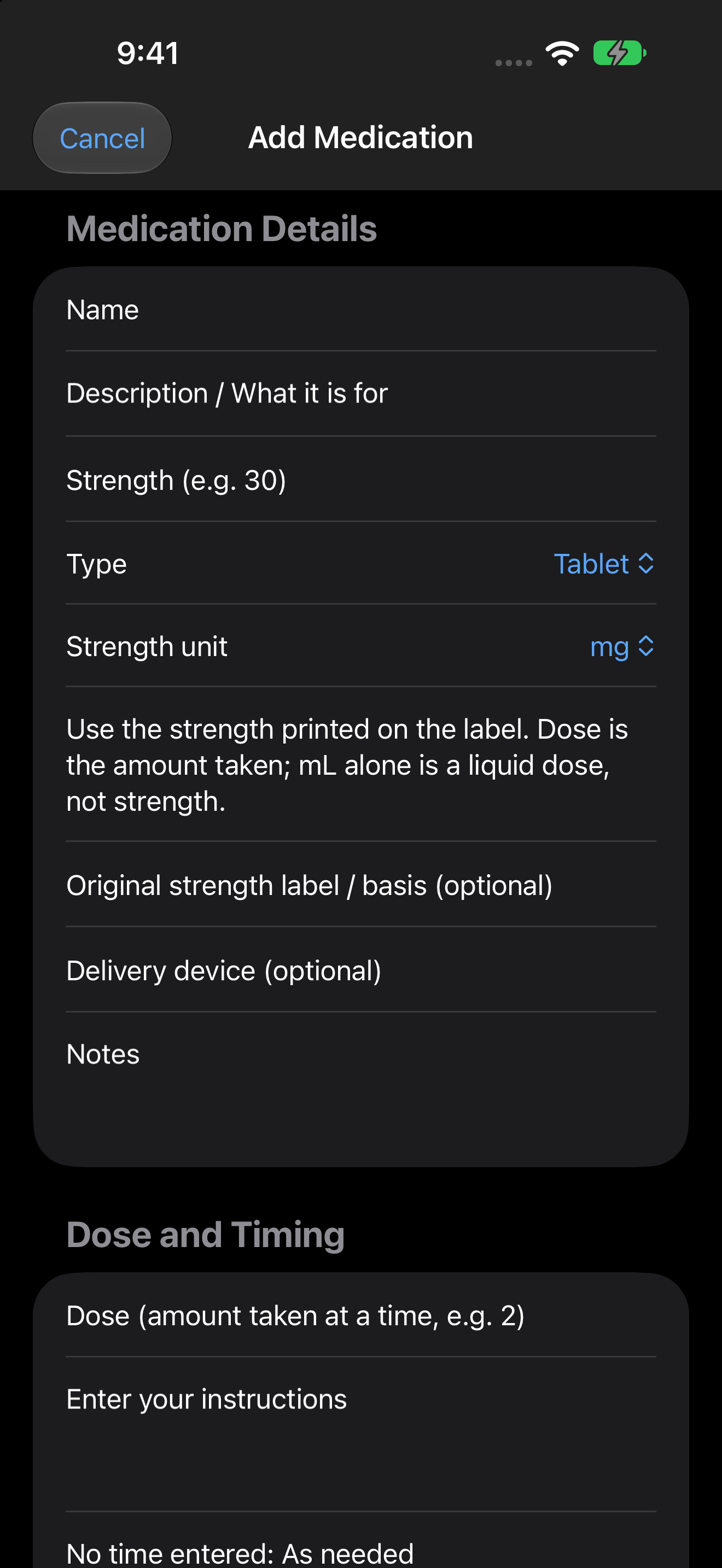
Tap + on My Medication. Complete the three groups below, then tap Add Medication at the bottom. Cancel leaves the draft unsaved. A name is required; dose, strength, and other optional details may remain blank. A saved time is necessary for a timed alarm. The screenshots use fictional examples, not instructions for taking medication.
Medication Details — Name identifies the entry. Description / What it is for records your reason. Strength is the number printed on the label, separate from the dose you take. Type describes the form, such as tablet or liquid; Strength unit offers units appropriate for that form. Original strength label / basis keeps wording that needs more detail. Delivery device records an optional device. Notes stores anything else you want to remember. If Previous entry fields appear for an older record, review them; the app has not guessed their meaning.
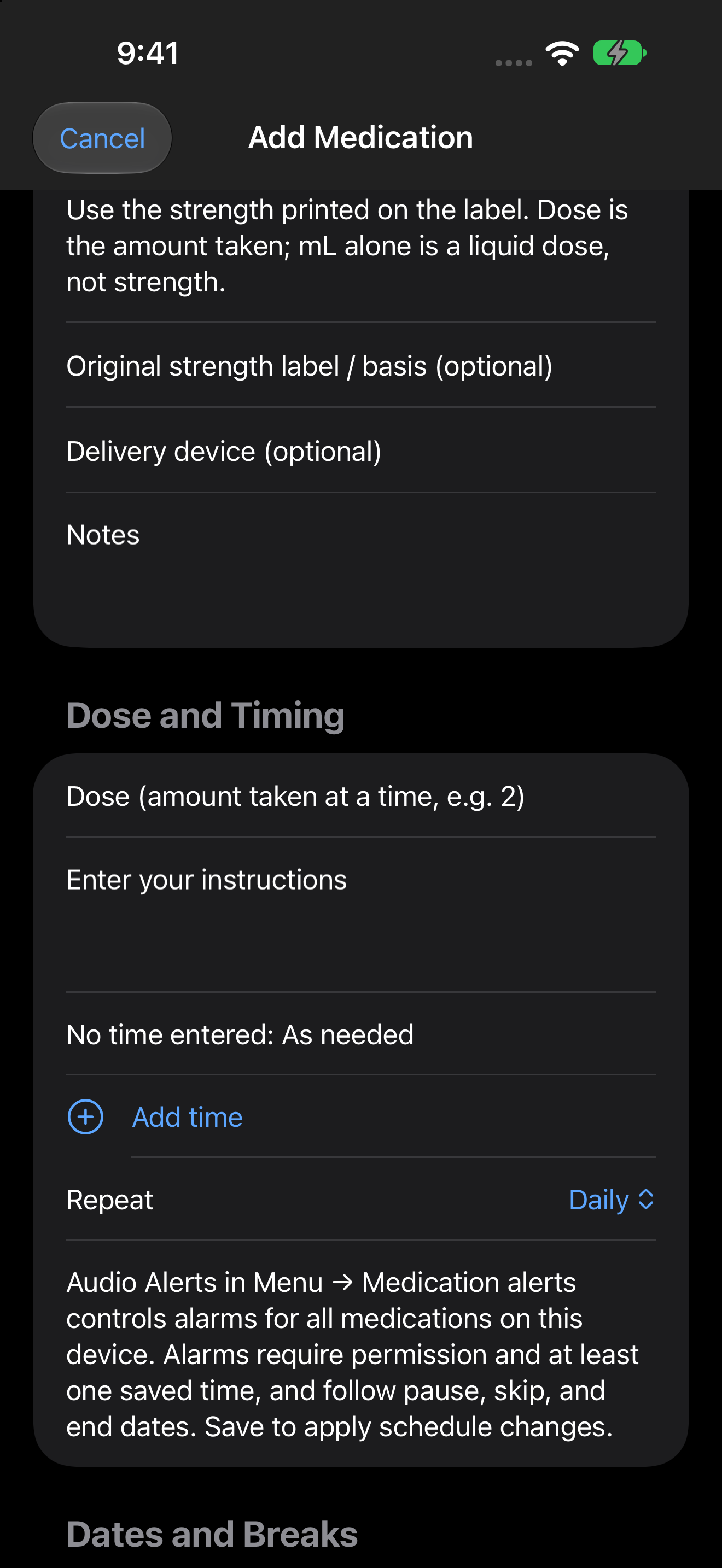
Dose and Timing — Dose is the amount taken at a time. Enter your instructions records your own directions. Tap Add time first to create a Time row, then set its time, including AM or PM. Add another row for another time; Remove time deletes that row. Selecting a date elsewhere does not add a dosing time. Confirm that the saved medication card shows the time rather than As needed.
Repeat chooses Daily, Weekly, Every two weeks, Monthly, or Custom interval. Select the offered weekdays when needed. A Schedule anchor date appears for non-daily patterns when your medication start date is unknown. Custom interval lets you choose a number and Days, Weeks, Months, or Years. Monthly and yearly patterns use the last day of a shorter month when necessary. Audio Alerts in Menu → Medication alerts is the single alarm switch for all entries on this device.
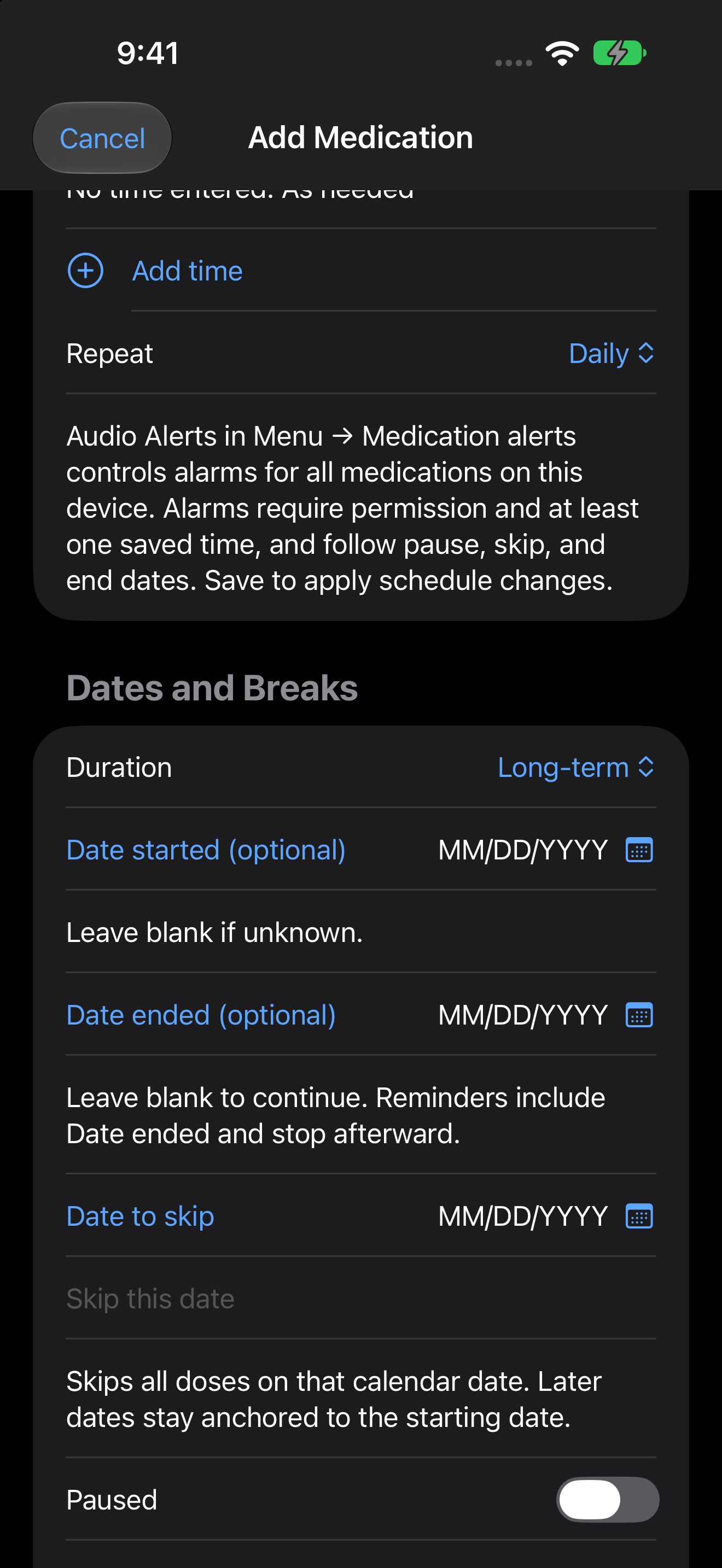
Dates and Breaks — Duration chooses Long-term or Short-term. Long-term Date started may stay blank when unknown, and Date ended may stay blank to continue. Short-term requires both dates. The end date is included; later doses are excluded. Short-term completion can prompt you to archive the record, edit the end date, or be reminded later. The app does not decide when treatment should stop.
Tap a calendar field, choose a date, and tap Use date. Cancel leaves the field unchanged; Clear date clears an optional value. To skip a day, choose Date to skip, tap Use date, then tap Skip this date. Save the medication to apply it. A blank skip field does not skip today. Remove a listed skip to restore that date’s normal schedule.
Paused records a break without archiving. Date paused records the start of the break. Date to resume is optional: enter a later date as MM/DD/YYYY to resume eligible reminders automatically, or leave it blank and turn Paused off when ready. Pauses, skips, start/end dates, and repeat rules still apply even when Audio Alerts is on.
In Edit Medication, Save or Save Changes applies your draft. Archive retains the medication and its history; Unarchive brings it back to the active list. Delete permanently removes the medication after confirmation, while elapsed dose snapshots remain in Dose History.
About
About shows the app version and links to Help, Terms and Conditions, and Privacy Policy. The application website is not yet available.
Sync with iCloud
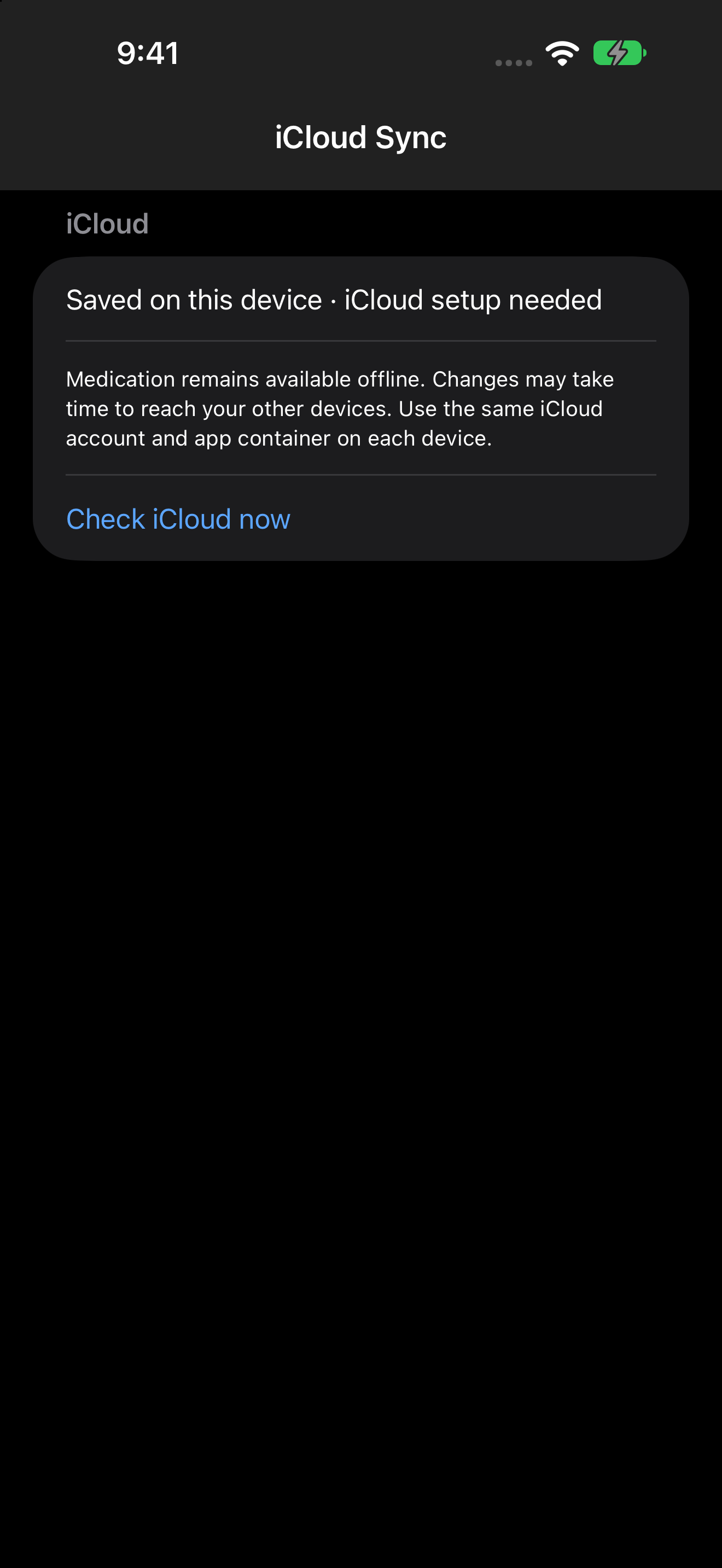
This Menu item opens iCloud Sync. Your records are saved on this device first and remain available offline. When iCloud is available, the app uses your signed-in Apple account to share records with your other devices. Use the same account and keep My Medication updated on each device.
Check iCloud now asks for a fresh check. Waiting or offline means changes are still queued; it does not mean they reached another device. Last successful sync shows the last completed check. iCloud up to date applies to this device’s sync status and does not prove another device has opened or received everything.
If two devices edited the same medication, a conflicting copy may be offered for review. Keep as a separate medication creates a new entry; Dismiss this version discards that copy. A medication deletion wins over competing edits.
Signing out or changing accounts keeps cached records separate; it does not move another account’s records into the new account. Device-only records can be listed separately. If iCloud data was removed outside the app, sync may pause while local records remain. Restore local records to iCloud deliberately uploads those preserved records again; review the warning first.
An Erase All My Data reset clears local personal records and queues a durable reset for iCloud. Other devices clear old records when they reconnect and sync. Previously used cached accounts wait until signed in again. Update every device before resetting: older app versions may still display or upload old information. Cross-device erasure has not yet been verified on multiple physical devices.
Dose history
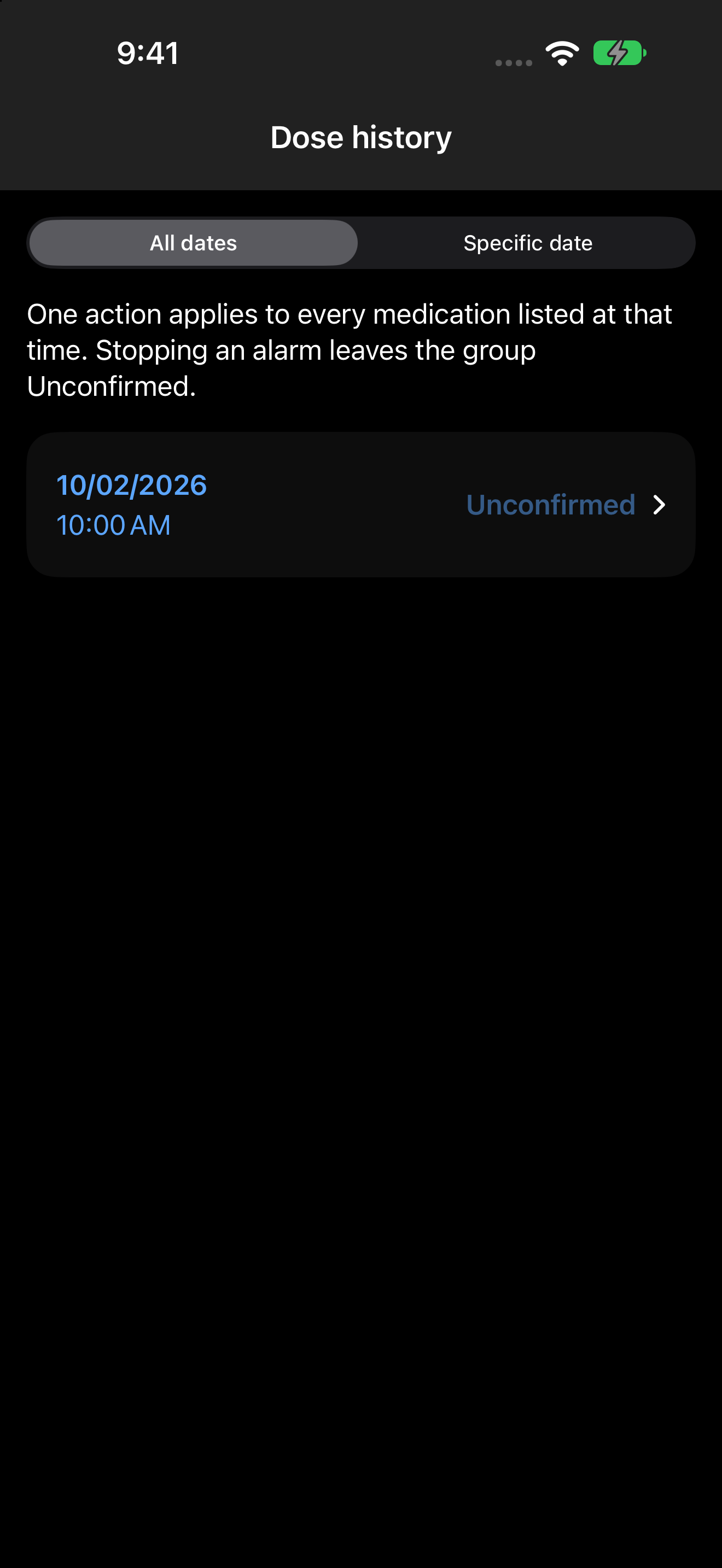
Dose history shows recorded dose groups at elapsed scheduled times. These snapshots preserve the medication details shown at that time, even if you later edit or delete the medication. Unconfirmed means no Taken or Missed choice has been recorded; the app does not infer what happened.
Tap a group to expand it. Taken or Missed records your choice with a timestamp and cancels that group’s remaining follow-ups. One choice applies to every medication listed in that time group. Shared-time group behavior is supported by the code; the completed physical-phone test used a single medication.
All dates shows the available history. Specific date → Choose date opens a regular calendar to filter it. Selectable calendar days are not indicators that records exist. After a reset the calendar can still show dates; No recorded doses means no matching history is available.
Stopping an alarm does not mark a dose Taken or Missed. Opening the list and tapping Done also leave the dose unchanged. The phone may ask you to unlock before opening the app or Dose History; follow its normal security prompt. Done returns to My Medication.
Up next
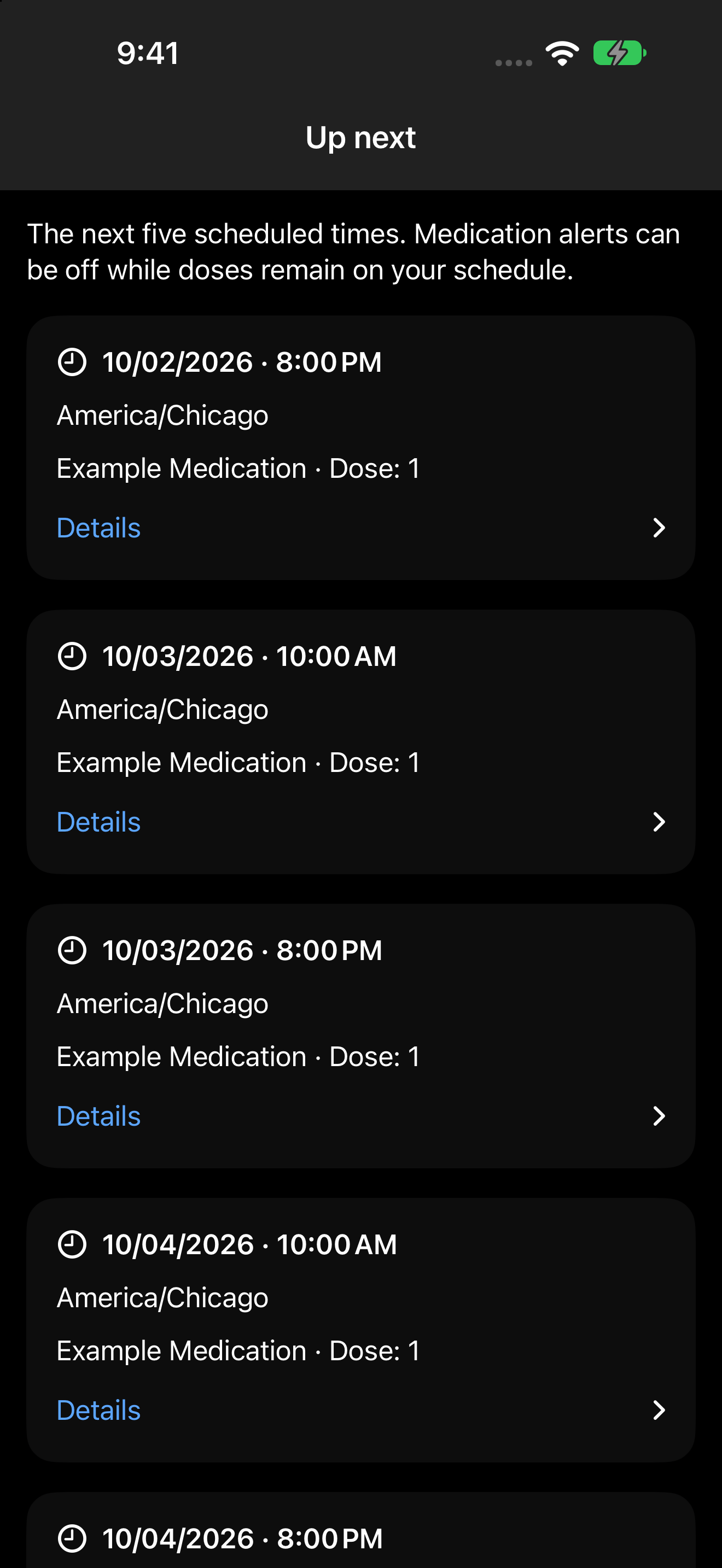
Up next shows the next five scheduled times. It follows saved repeat rules, dates, skips, and pauses. This is your taking schedule, so entries can remain visible when Audio Alerts is off. Seeing a time here does not prove an alarm is registered.
Appearance
Choose Dark mode or Light mode for this device. This does not change your records or alarm permission.
Medication alerts
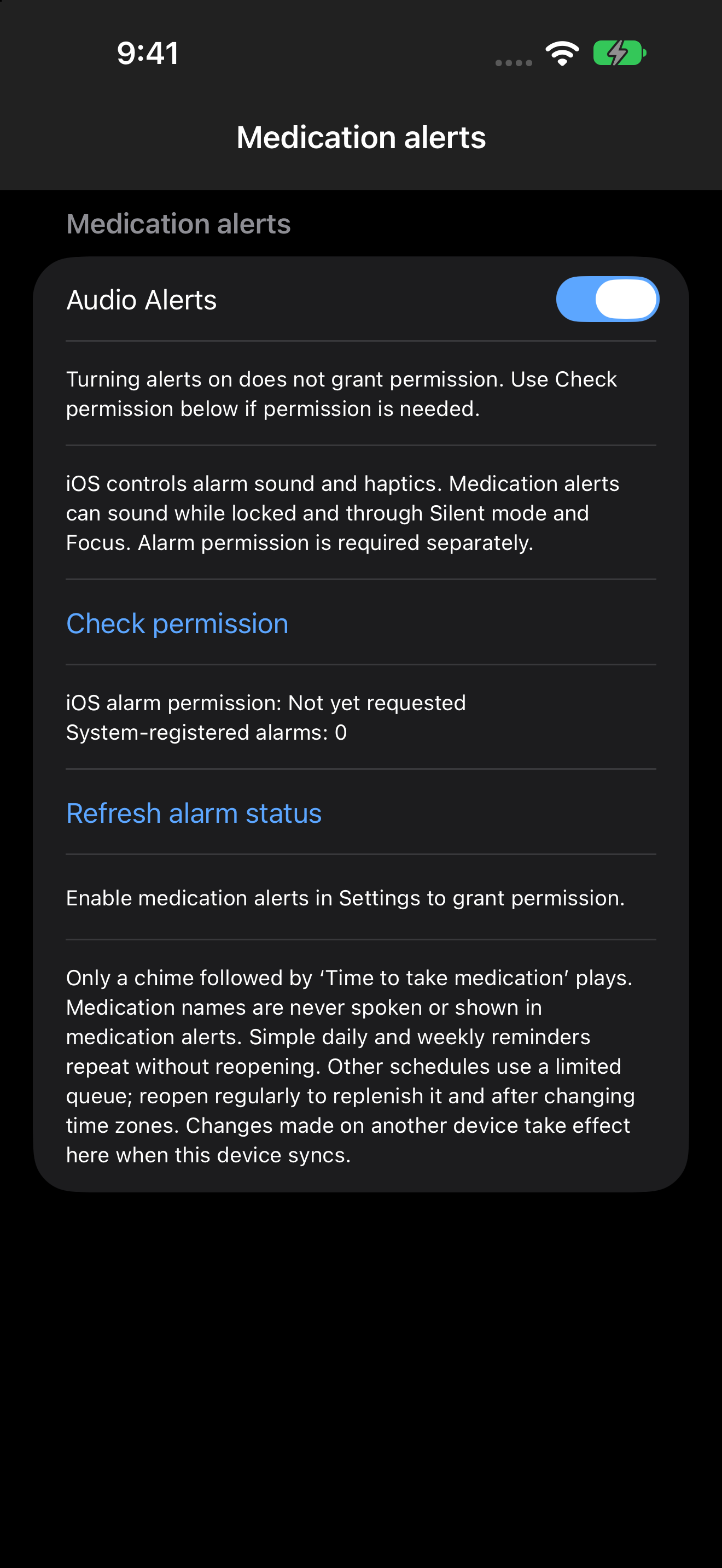
Audio Alerts is the single on/off switch for all medications on this device. On makes entries with saved times eligible for alarms, subject to permission, repeat rules, start/end dates, skipped days, and pauses. Off cancels alarms without removing medications or taking schedules. There is no per-medication alarm switch.
Turning Audio Alerts on does not grant permission. Tap Check permission and respond to the system prompt. On iPhone and iPad, iOS alarm permission must say Allowed. System-registered alarms reports what iOS actually has registered, with each alarm’s time and state. Refresh alarm status only reads that status; it does not change your schedule. A zero count or a scheduling error needs attention before a timed test.
Repeating reminders active means eligible daily/weekly times were registered as repeating alarms. Other schedules use a limited queue: read the scheduled-through message and reopen the app regularly to replenish it. Reopen after changing time zones. Changes from another device take effect after this device syncs.
iOS controls alarm sound and haptics, including locked-screen presentation. This app uses a generic chime and ‘Time to take medication’; medication names are not included in alarm titles or speech. Mac reminders use system notifications, so notification permission, Focus, volume, and system settings can affect delivery.
Older app versions may still enforce the removed per-medication preference. Update every device for the single-switch behavior. Each device has its own Audio Alerts setting. A successful one-phone test is not a guarantee of every future alarm.
Remind me later
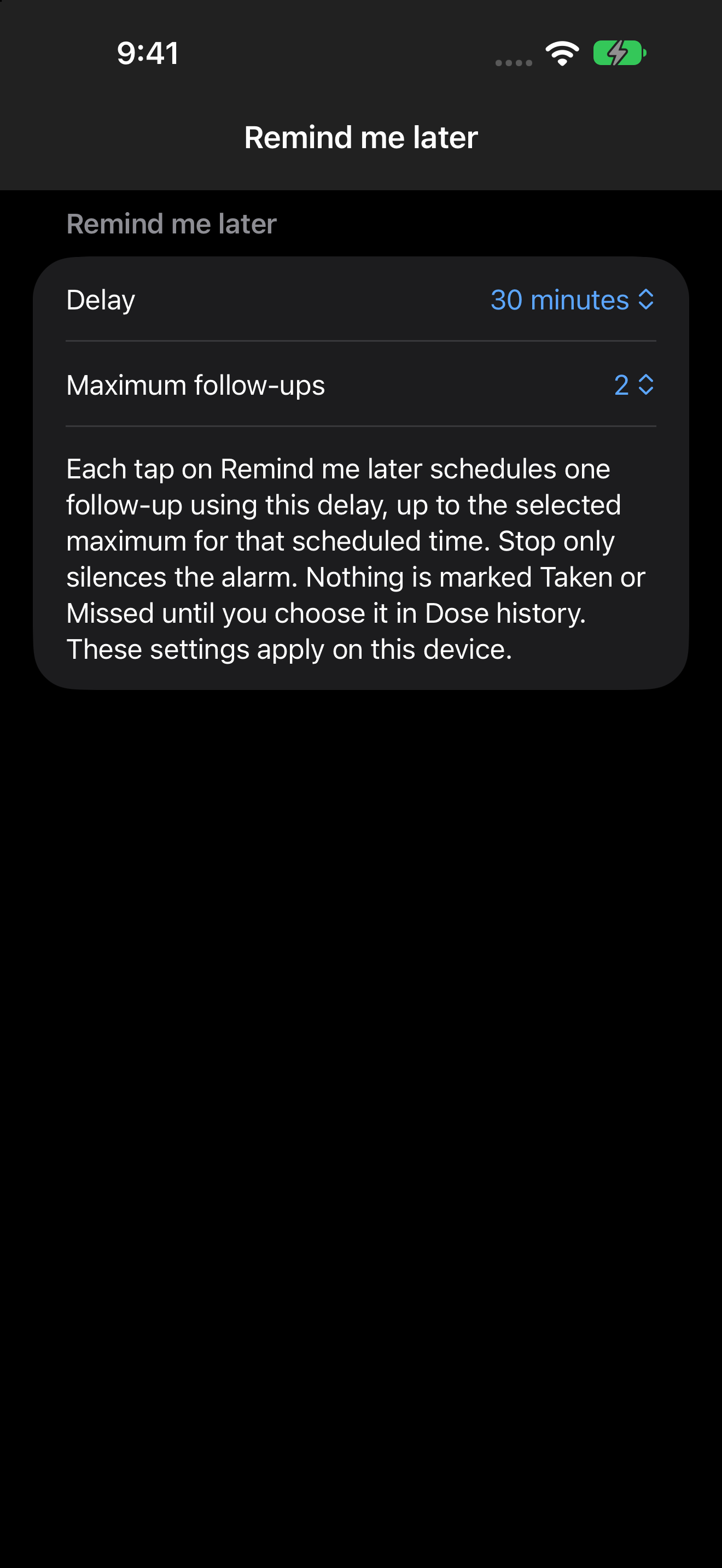
Choose the Delay and Maximum follow-ups in Menu → Remind me later. These settings apply to all medications on this device. They control follow-ups after you tap Remind me later on an alarm; they do not delay the original alarm.
Each tap schedules one follow-up for that dose time. For example, a five-minute delay with two follow-ups allows a first and second follow-up. After the second, no further Remind me later is offered. None disables follow-ups. Stop silences the current alarm without confirming a dose.
During a countdown, the dimmed Always-On display may show minutes with dashes for seconds, such as 2:-- or 1:--. In the observed iPhone test, tapping to wake the screen showed seconds again. The reduced display does not mean the timer stopped; the exact display behavior can vary by device and system version.
Open List opens the relevant dose group/history and may require unlocking. Opening it or tapping Done does not record a dose or cancel the timer. Taken or Missed records the status and cancels the group’s remaining follow-ups.
In the completed iPhone sample test, the locked-phone original alarm and both five-minute follow-ups sounded. The countdown continued through Open List, Done, and locking the phone. Taken appeared with a timestamp afterward. Multi-medication physical-device behavior, long-horizon delivery, relaunch persistence, and cross-device sync need separate verification.
List options
Sort by Medication name A–Z or Scheduled time. Switch between Active medication and Archived medication to view the records you need. Archiving keeps an entry; it is different from permanently deleting it.
Help
Help explains the current app. Screenshots show fictional sample data on an iPhone simulator; your dates, records, permission messages, and larger-screen layout can differ. Use the table of contents at the beginning to jump to a section.
Terms and Conditions
Read the current terms, including the app’s purpose, your responsibility for entered information, alarm limitations, and storage behavior. These terms are marked as a draft for review.
Privacy Policy
Read what the app stores, how offline records and iCloud work, and how deletion metadata is retained to keep old records from returning. This policy is currently a draft.
Erase All My Data
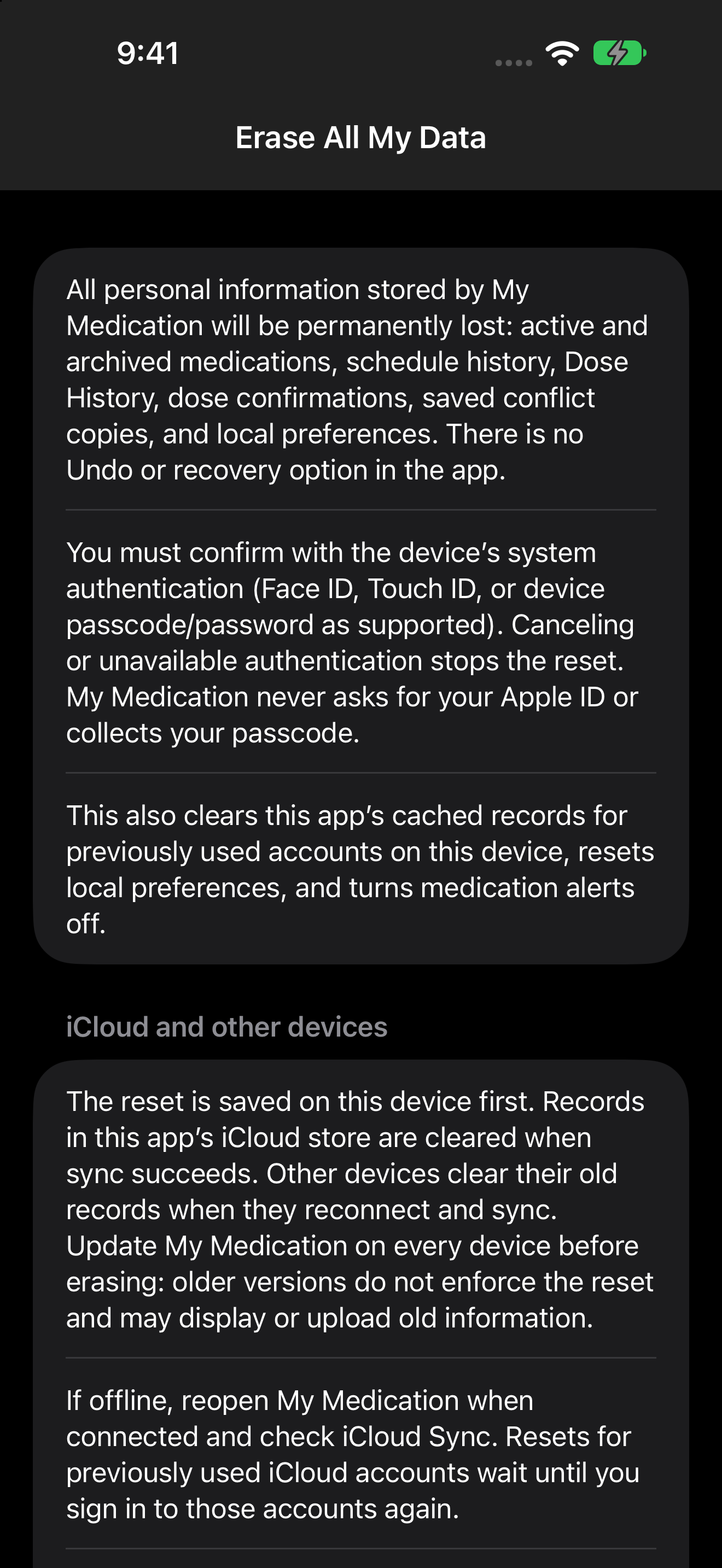
Erase All My Data is the last Menu item. It removes active and archived medications, schedule history, dose snapshots and Taken/Missed events, conflict copies, and local preferences. It turns Audio Alerts off and cancels this device’s alarms. This permanent loss cannot be undone in the app.
First read the warning and confirm Erase All My Data. The system then requires device-owner authentication, using Face ID, Touch ID, or the device passcode/password as supported. Canceling, failed authentication, or unavailable authentication stops the reset before erasing. The app never collects your passcode or asks for Apple ID credentials.
Local personal records are cleared first. iCloud changes wait for successful sync, and other devices must reconnect to receive them. Update every device before resetting; older versions may upload old information. Payload-free deletion identities and sync metadata remain to prevent old records from reappearing. Exported/shared files and device backups are managed separately and are not erased. This does not reset your phone or delete your iCloud account or other apps.
The user’s actual iPhone test confirmed the warning, device authentication, and cleared medication and history. Cross-device erasure is not yet physically verified. The ordinary history calendar can still show selectable dates when records are empty. For future alarms after reset, turn Audio Alerts on, save a scheduled time, check permission, and verify system registration.
Medication chart
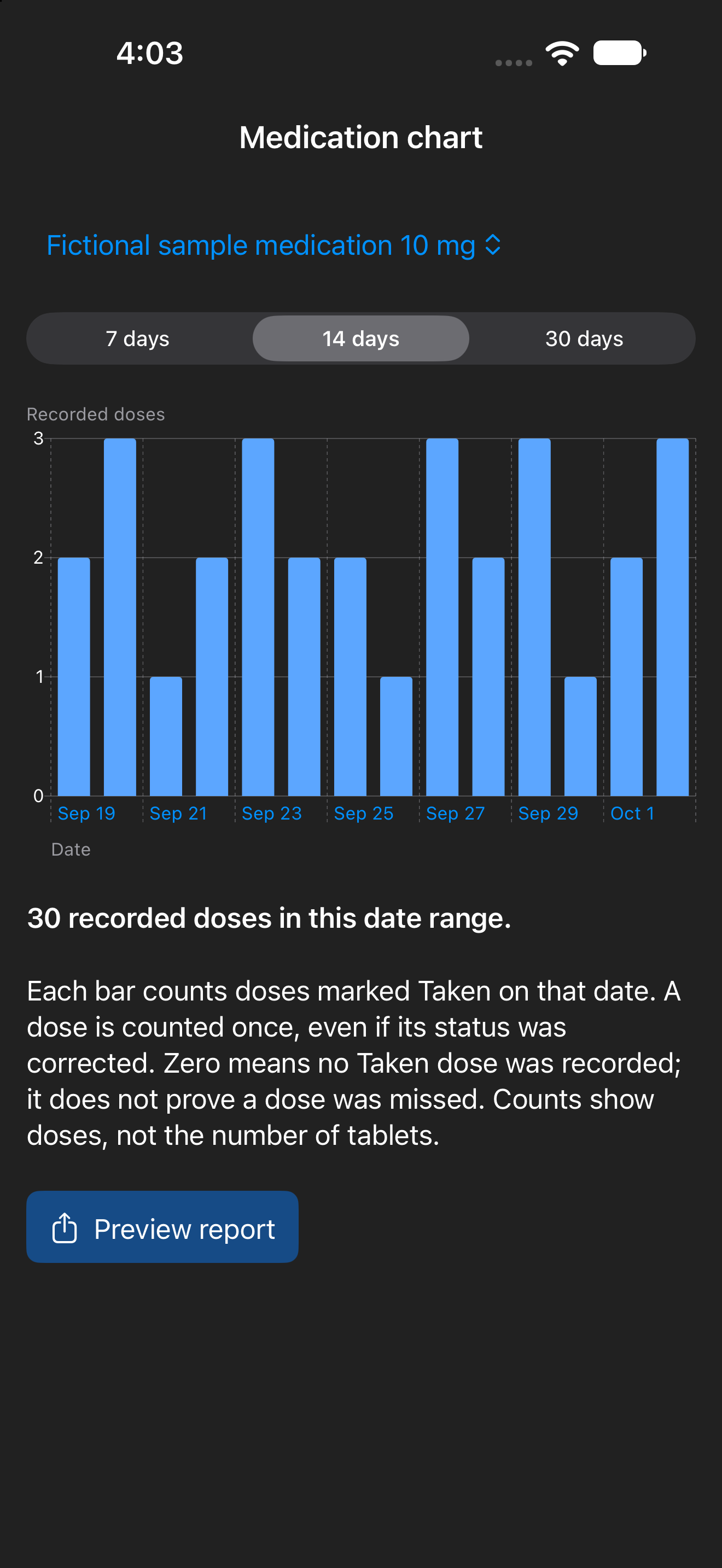
Open Menu → Medication chart. Choose a medication and a 7-, 14-, or 30-day range. Dates run along the bottom and recorded dose counts on the left. Each dose marked Taken counts once on its recording date; correcting the same dose does not add another dose.
Select Preview report to review a dated PDF, then Share to choose where to send it. Sharing sends a snapshot that does not update later. Counts represent recorded doses, not tablet quantities; a zero does not establish that a dose was missed.